Why should you have to manage content twice for your screens in the store, lobby, or storefront? With the digital signage cloud software SignageNow, you can seamlessly connect your physical displays to your digital presence: You can embed the playlists you’ve created directly into your own website with just a few clicks.
Whether it’s a digital bulletin board for local governments, a daily menu for restaurants, or an animated sale banner for your online store - your content is centrally managed and synchronized from the cloud across both screens and your website.
In this guide, you’ll learn step by step how to embed your digital signage playlists on your website using Native Loader or an iFrame.
Native Loader vs. iFrame: Which Embed Code Is Right for You?
SignageNow offers two flexible methods for displaying your screen content on the homepage:
- Native Loader (Recommended): This method uses a modern JavaScript code snippet. The content loads extremely quickly, adapts fully and responsively to all display sizes (desktop, tablet, smartphone), and integrates seamlessly into your website’s design.
- iFrame (The Classic): A standard HTML iFrame that works on absolutely any web server, in any content management system (CMS), and on website builders (such as Wix, Jimdo, or Webflow) without requiring any prior technical knowledge.
Step-by-Step Guide: Embedding Digital Signage on Your Website
Step 1: Prepare a Playlist in SignageNow
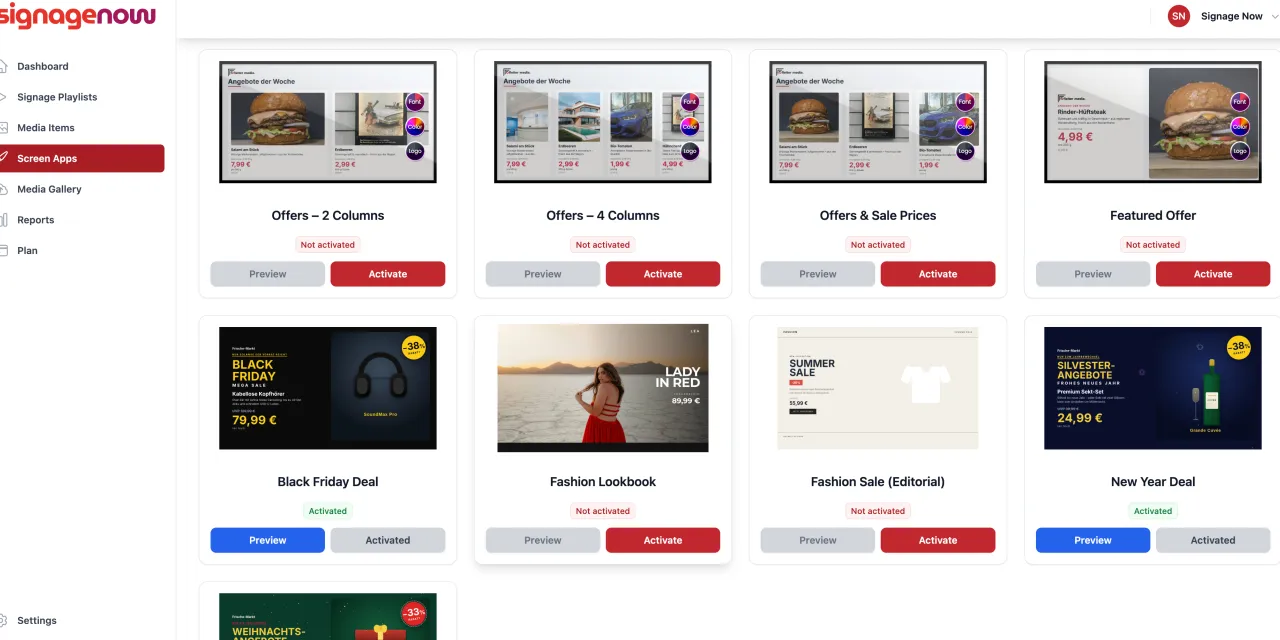
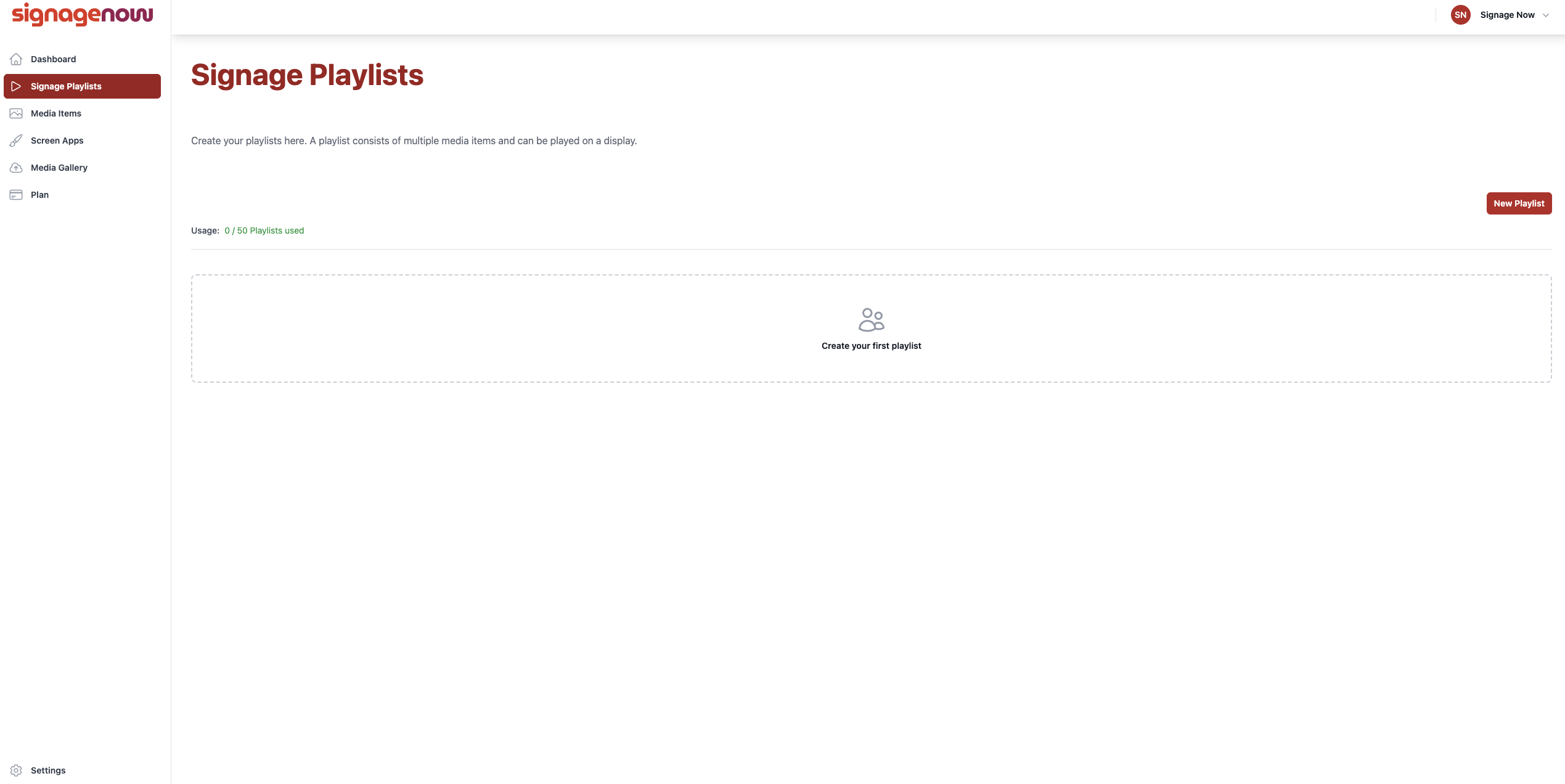
Create your desired playlist in the SignageNow dashboard. You can combine images, videos, PDFs, templates, or our animated screen apps in any way you like.
Step 2: Copy the embed code
- In the dashboard, navigate to your desired playlist.
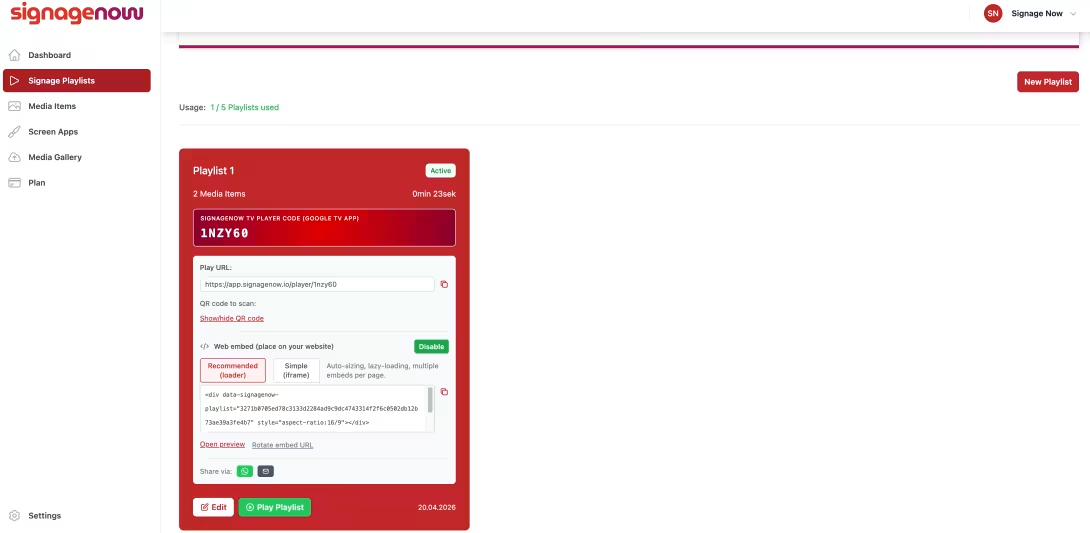
- Directly below the URL, you'll find the “Embed on website” option. Click “Activate.”
- Choose between the Native Loader snippet or the iFrame code.
- Copy the generated code snippet to your clipboard.
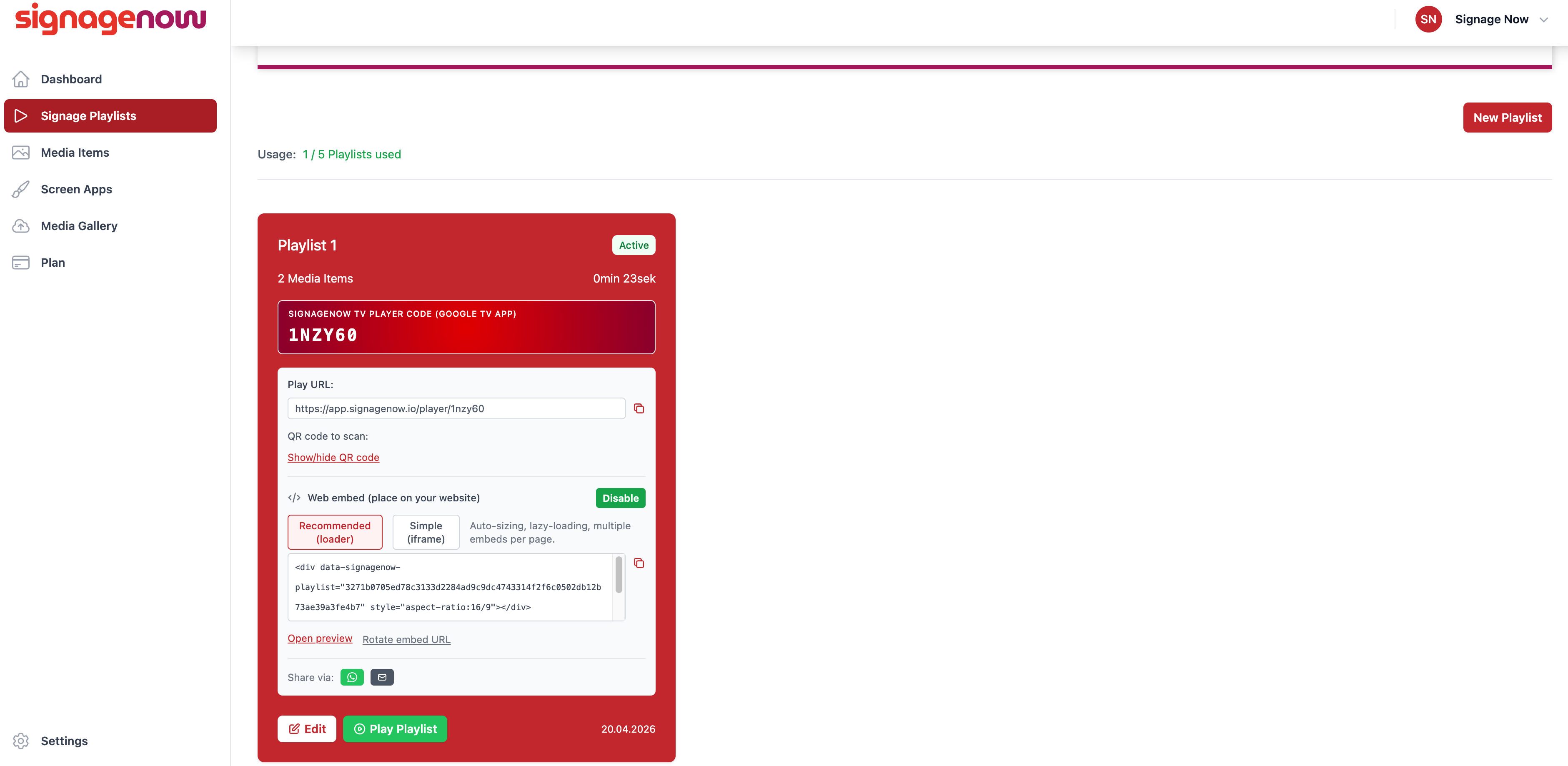
Step 3: Insert the code into your website’s CMS
Open your website’s editor (e.g., WordPress, Drupal, TYPO3, Shopware, Joomla, or a website builder):
- For WordPress (Gutenberg Editor): Insert a new “Custom HTML” block at the desired location and paste your copied code there.
- For Elementor / page builders: Use the HTML widget, drag it to the appropriate location, and paste the snippet code.
- For classic HTML websites: Insert the code directly into the HTML source code at the location where you want the digital signage playlist to appear.
Step 4: Save & Use Synchronized Live Updates
Save the page and publish the change. Your digital signage playlist is now live on your website!
The biggest advantage: When you add new slides or change prices in the SignageNow dashboard, the display on your website automatically updates in real time - just like on your screens.