
How do I enable Hotel Mode in the Player app?
Tip: New here?
You can't create playlists without an account. Click the person icon (SignageNow Account) in the menu on the left and scan the QR code with your smartphone. You can sign up for free at app.signagenow.io/register.
If you want to know how to enable autostart after turning on the smart-tv, you'll find instructions here.
Set up Hotel Mode in the app
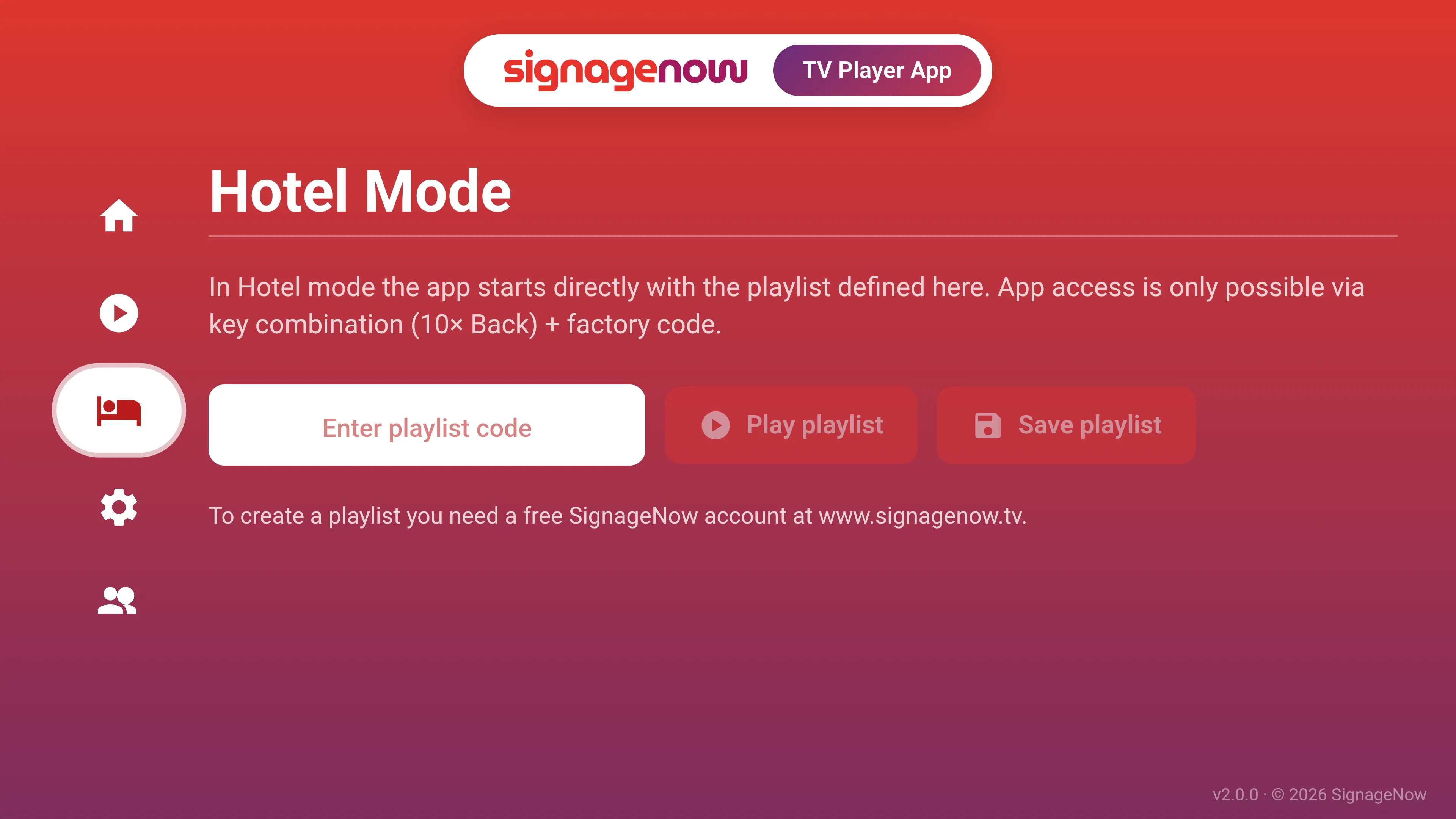
The Hotel Mode ensures that the entire user interface (UI) of the app remains completely hidden from your guests. When Hotel Mode is active, the playlist runs without any interruptions. A guest can only switch back to the TV home screen—they will never see the app settings.
Setup by the Administrator:
- Navigate to the gear icon on the left menu to open the Settings.
- Turn on the toggle "Start app in Hotel Mode with last playlist".
- Switch to the bed icon on the left menu (Hotel Mode).
- Here you will see the preset Current factory code (e.g.,
472382. Click the "Change factory code" button to set your own custom admin PIN. Please write this code down carefully!
Important for Daily Operation:
- Leaving the app: While the playlist is running in Hotel Mode, press the new "To TV / Streaming" button on the remote control to safely switch back to the regular TV start menu (Netflix, Live TV, etc.).
- Back to App Settings: If you are the installer or hotel IT and need to access the app settings again, press the key combination (Press the “Back” button 10 times) on your remote control and enter your factory code.
Want to learn more about SignageNow? No problem.
Learn more about our digital signage software and prices here.