
Install the SignageNow TV Player app
Tip: Don't Have an Account Yet?
If you haven't created any playlists yet, navigate to the people icon on the left menu (SignageNow Account). Simply scan the QR code with your smartphone to create a free account at app.signagenow.io/register.
If you want to know how to set up Hotel Mode or enable autostart after powering on, you'll find instructions here.
How to install the SignageNow TV Player app
Our latest SignageNow TV Player app is available on the Google Play Store and Amazon Appstore.
Follow these instructions to set up the SignageNow TV Player on your Google TV/Android TV (e.g., Chromecast, Xiaomi Stick, Sony/Philips Smart TVs) or Fire TV in just a few minutes.
Step 1: Install the App on Your TV
- Turn on your Google TV / Android TV or Fire TV.
- Open the Google Play Store or the Amazon Appstore.
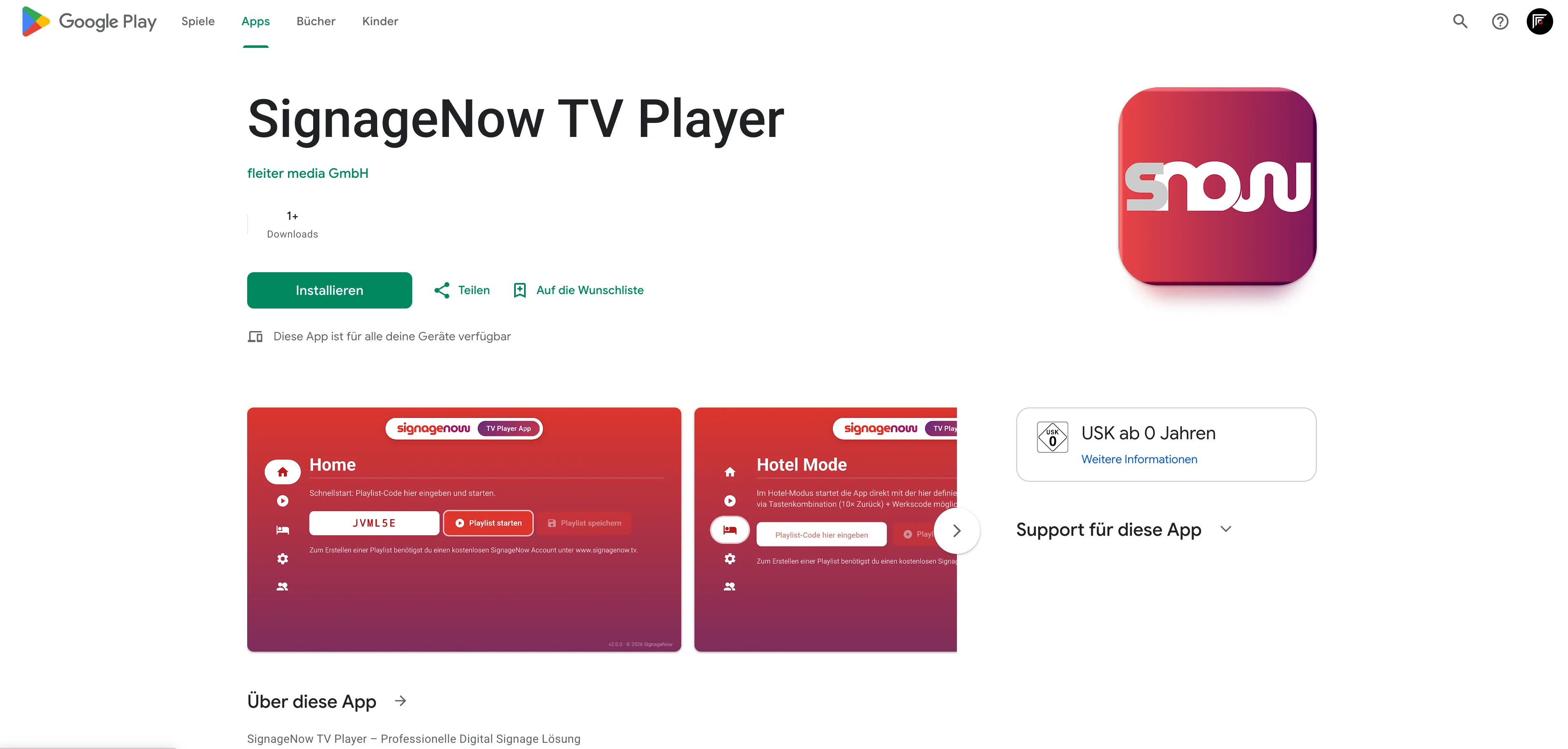
- Search for "SignageNow" and install the SignageNow TV Player app (Developer: fleiter media GmbH).
- Alternative: Open the Google Play Store Link on your smartphone/PC and select your TV as the installation target.
Step 2: Normal Mode (Play or Save a Playlist Directly)
To display a playlist on your TV, all you need is the 6-digit playlist code from your online account at app.signagenow.io.
- Open the app on your TV. You will automatically land on the Home page.
- Type your 6-digit playlist code into the white input field.
Two Options:
- Play playlist: Starts playing the playlist immediately.
- Save playlist: Saves the playlist locally on the TV. You can then find it on the left menu under "Playlists" to launch it instantly at any time without re-entering the code.
Want to learn more about SignageNow? No problem.
Learn more about our digital signage software and prices here.