Anyone who wants to use advertising screens in their own restaurant, car dealership, or doctor’s office often faces the question of which hardware to choose. Not every existing TV has modern smart TV features, and the cost of purchasing expensive specialized monitors deters many beginners.
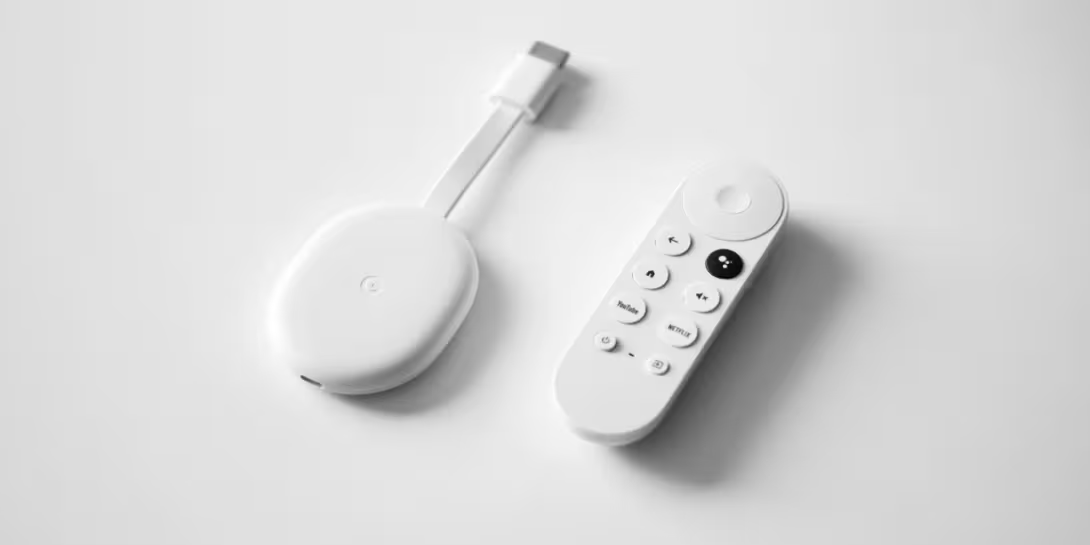
This is where an extremely cost-effective and proven solution comes into play: digital signage with Google Chromecast. Google’s compact HDMI dongle (especially the latest Chromecast with Google TV) transforms any standard TV or monitor into a professional advertising display in no time.
In this guide, we’ll show you how to set up your own digital signage display in just a few minutes - no prior IT knowledge required.
Why the Google Chromecast is the ideal Hardware Alternative
Don't want to spend hundreds of euros on specialized media players or Raspberry Pis? Do you still have working screens whose built-in browsers are too slow or don't exist?
Streaming sticks like the Google Chromecast or the Google TV Streamer offer the perfect solution here:
- Affordable & Widely Available: Starting at around €40, the stick instantly turns any HD or 4K display into an internet-enabled infodisplay.
- Google Play Store & Remote Control: The Chromecast with Google TV, in particular, offers full access to the app store and can be conveniently controlled with a remote.
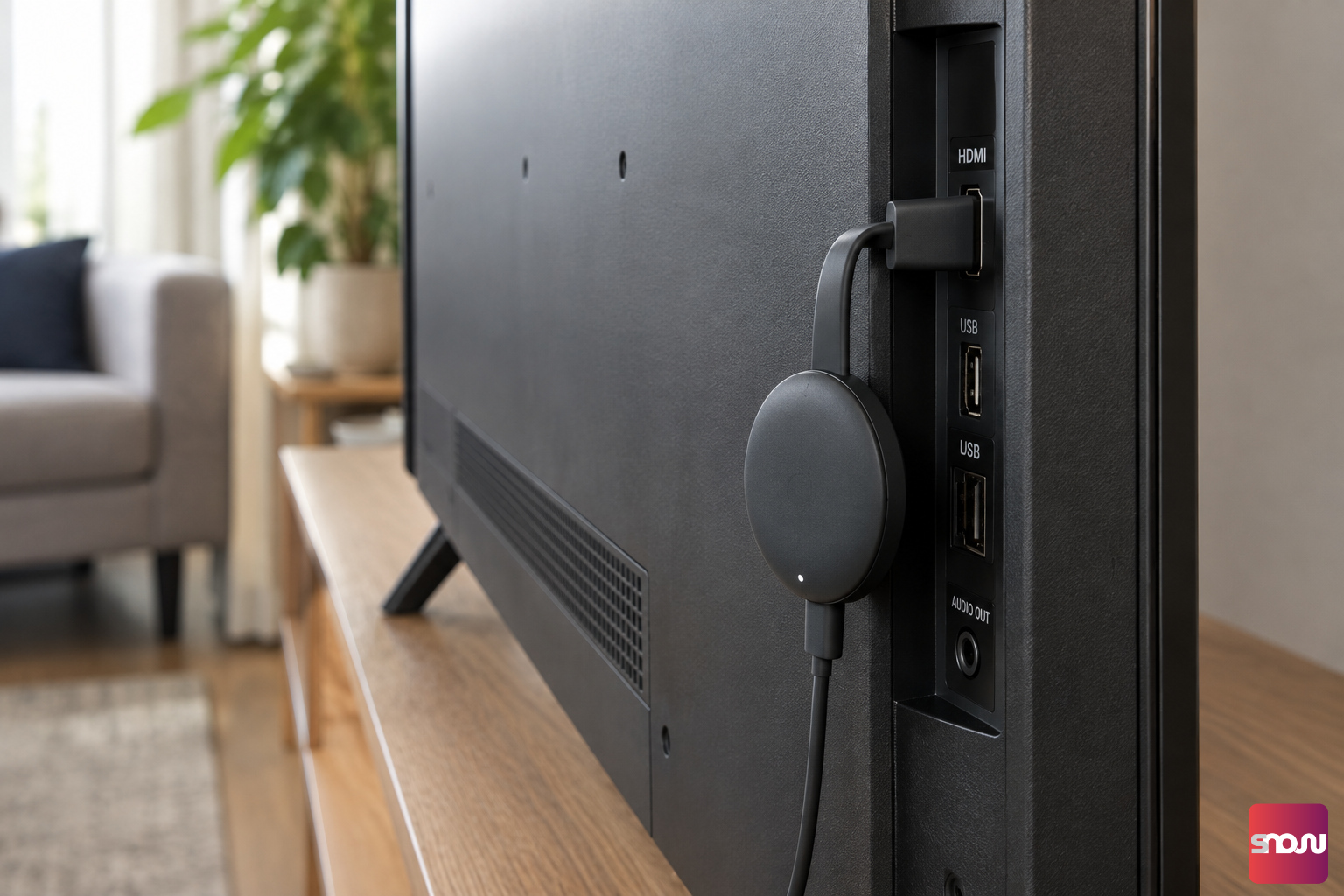
- Compact & Unobtrusive: The stick hides out of sight behind the TV and requires only power and a stable Wi-Fi signal.
Which Software is the Best?
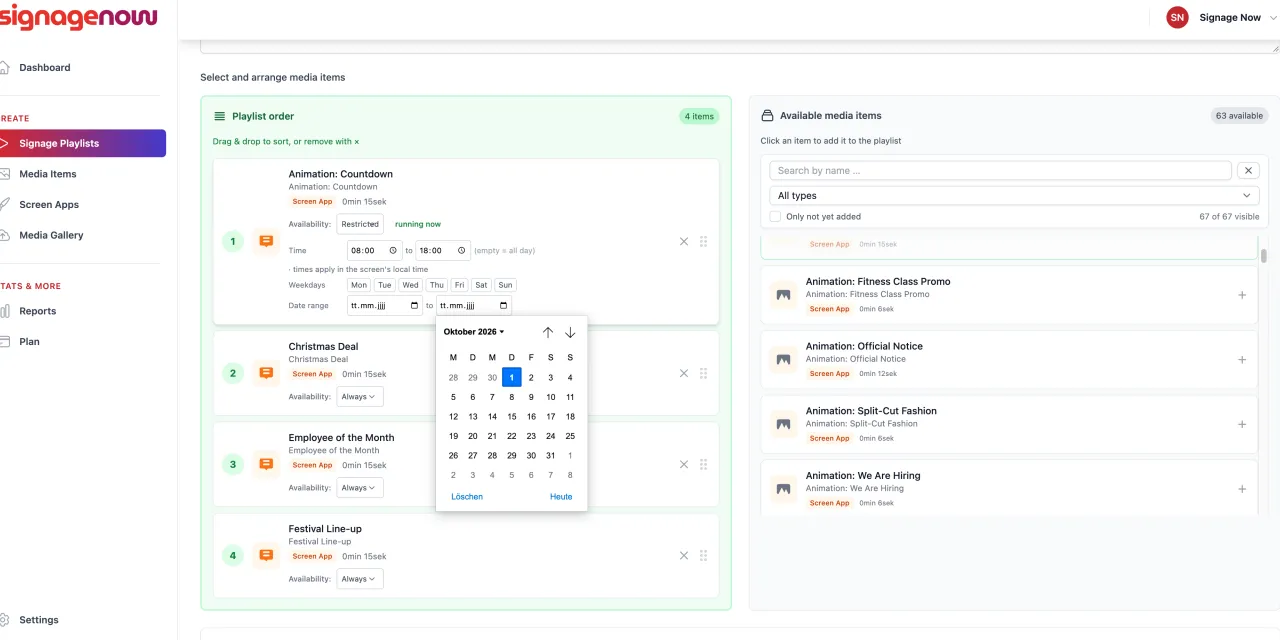
To use your Chromecast for digital signage, you’ll need cloud-based software that lets you centrally manage your content (images, videos, menu boards, PDFs, etc.).
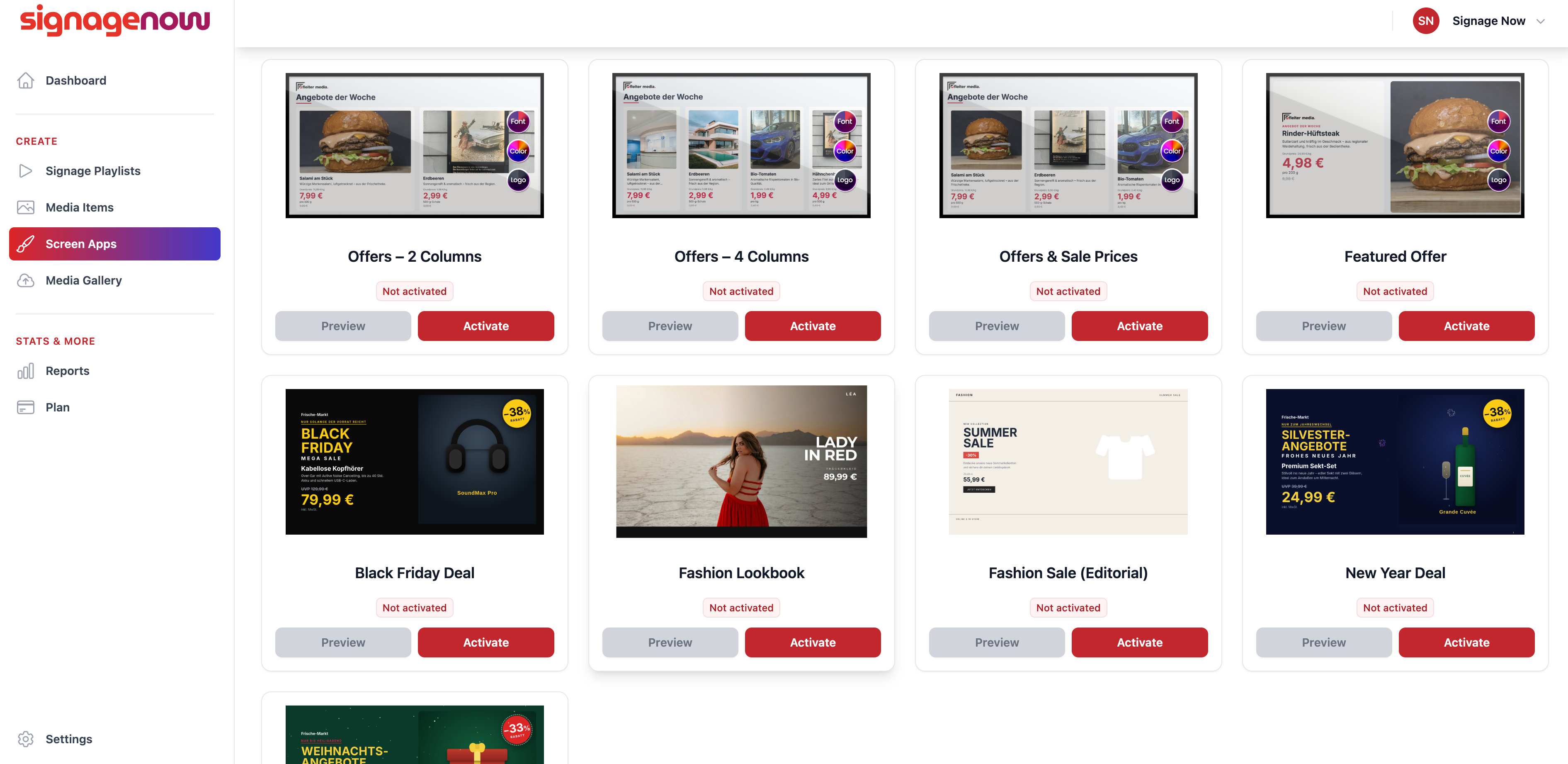
SignageNow is specifically designed for easy use with streaming sticks like the Google Chromecast and combines professional features with a permanently free trial:
- 100% free to use: You can use SignageNow with absolutely no obligation. This includes all templates and custom schedules - with no hidden costs.
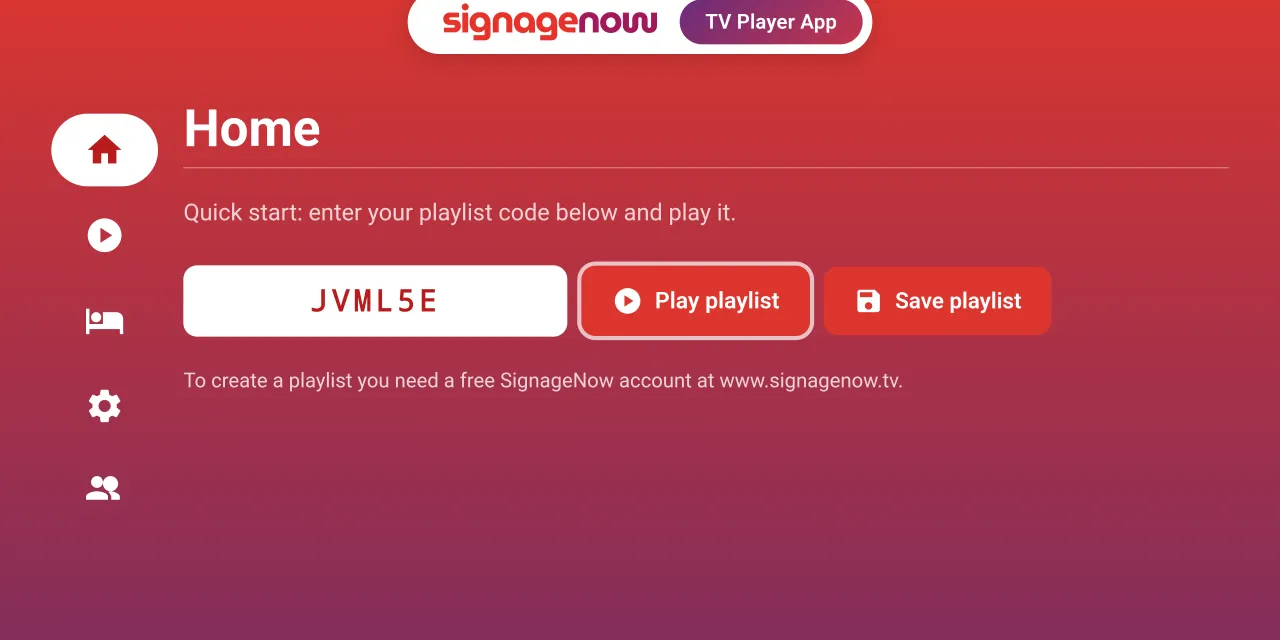
- Seamless Google TV integration: Simply install the free “SignageNow TV Player App” from the Google Play Store. It ensures maximum stability during continuous operation.
- Manage from anywhere: Create and manage your content conveniently in your browser on a PC or smartphone - your changes are applied in real time.
- GDPR-compliant & secure: The system is hosted on servers in the EU and meets all European data protection standards.
Plus, you don’t pay per screen. That means you can use as many screens as you want!
What You Need for Your Digital Infoscreen
Before you start setting it up, make sure you have the following components ready:
- A TV or monitor with an available HDMI port.
- A Google Chromecast (recommended: Chromecast with Google TV).
- A stable Wi-Fi connection.
- Your free account with a digital signage cloud software provider.